
By Trusted Tech Buys
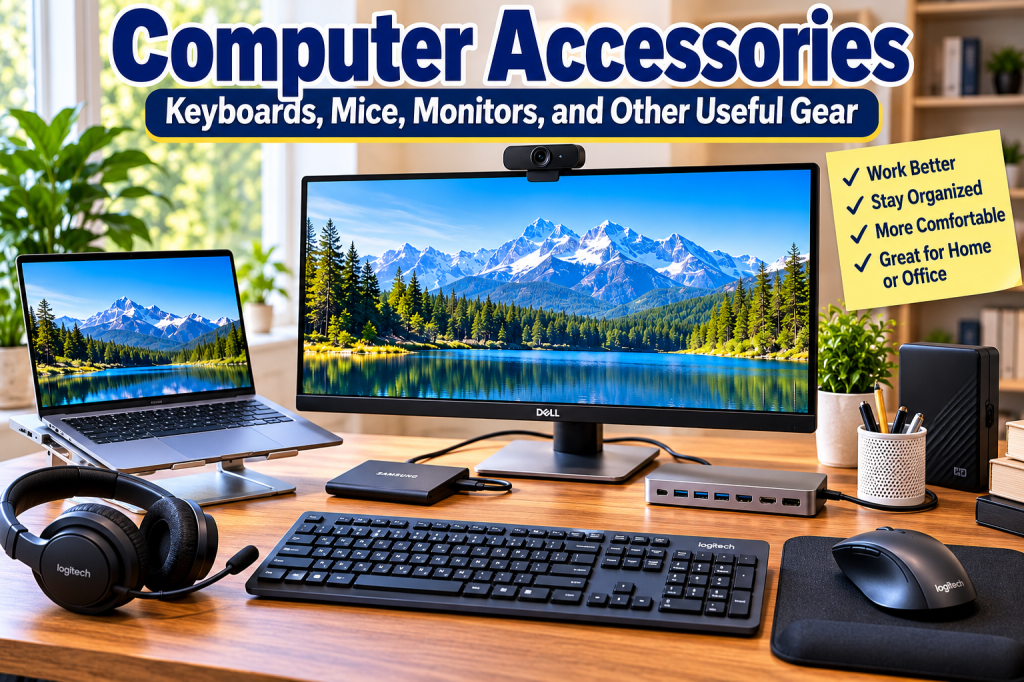
A better computer setup doesn’t have to cost hundreds of dollars. The right keyboard can make typing easier, a good mouse can improve everyday navigation, and an external monitor can give you more room to work. But with so many choices available, how do you know what is worth buying?
At TrustedTechBuys.com, we make technology easier to understand. Here’s how to choose computer accessories that solve real problems without paying for features you don’t need.
1. Start With What Frustrates You Most
Before shopping, think about what you want to improve.
- Typing feels uncomfortable: Consider a full-size keyboard with comfortable keys.
- Your laptop touchpad is difficult to use: Try a separate wired or wireless mouse.
- You struggle to read documents: An external monitor with a suitable screen size may help.
- You have too few connection ports: A compatible USB hub may solve the problem.
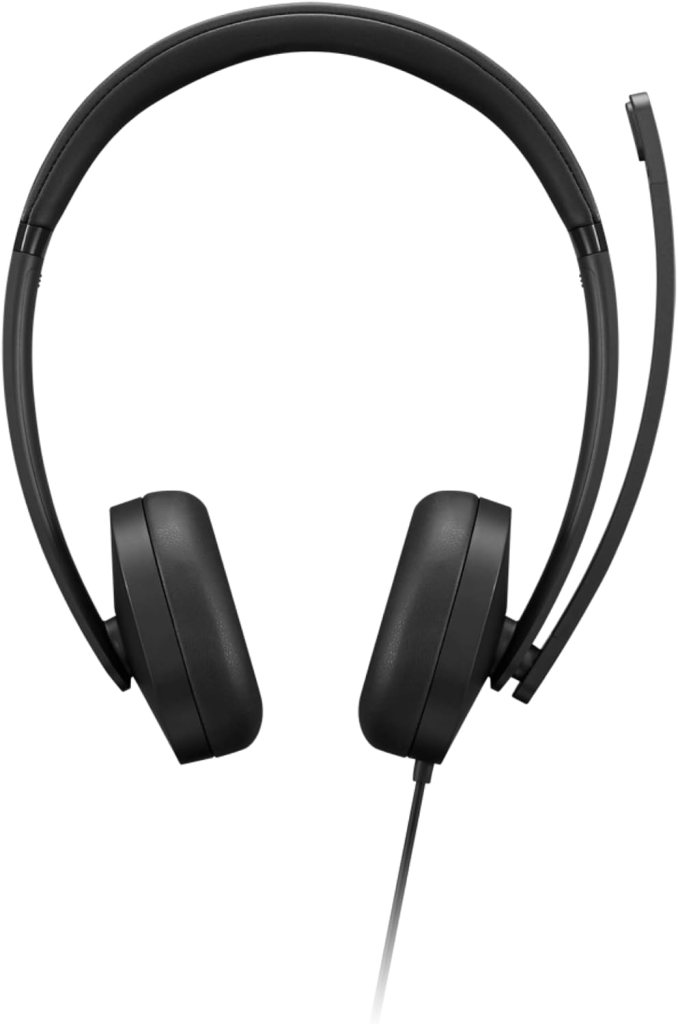
- People cannot hear you clearly during calls: Consider a headset with a built-in microphone.
- Your desk feels cluttered: Wireless accessories and a laptop stand may help organize your workspace.
Buying with a specific purpose in mind helps prevent unnecessary spending.
2. Keyboards: Simple Features Matter Most
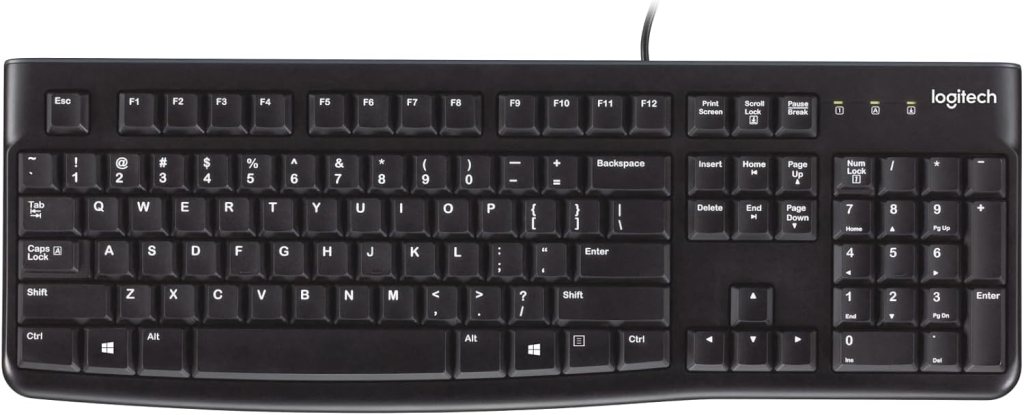
For everyday computing, a basic keyboard is often enough. Look for comfortable keys, a reliable connection, and a layout that suits your needs.
A full-size keyboard includes a number pad, useful for spreadsheets, budgeting, and entering numbers. Compact keyboards take up less desk space and may be convenient for travel.
Wireless keyboards reduce cable clutter, while wired models avoid battery management. Mechanical keyboards offer a different typing feel but are not essential for ordinary computer use.
3. Mice: Comfort Beats Extra Buttons
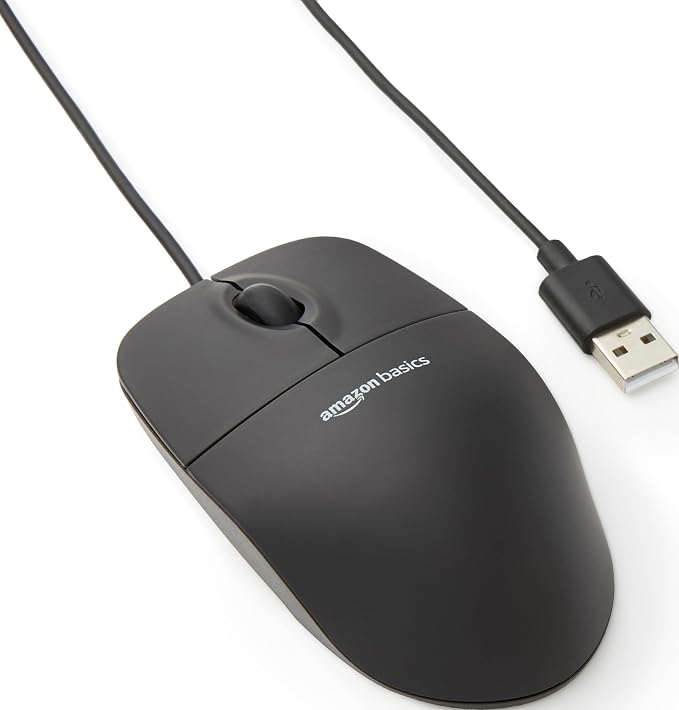
A computer mouse should feel comfortable in your hand and respond reliably. Basic models work well for browsing, shopping, email, and office tasks.
Wireless mice provide more freedom of movement. Wired mice are straightforward and do not need charging. Ergonomic designs offer alternative shapes for people who prefer a different hand position.
You generally don’t need a gaming mouse unless you want its specialized features. Choose based on comfort, connection type, and price.
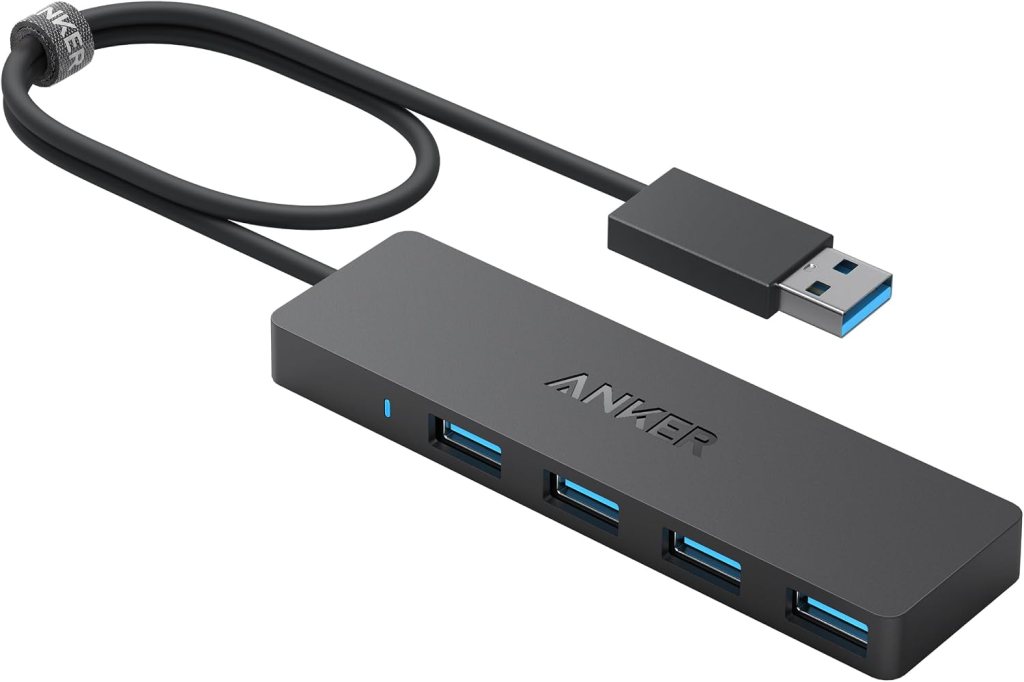
4. Monitors: Know What You’re Paying For
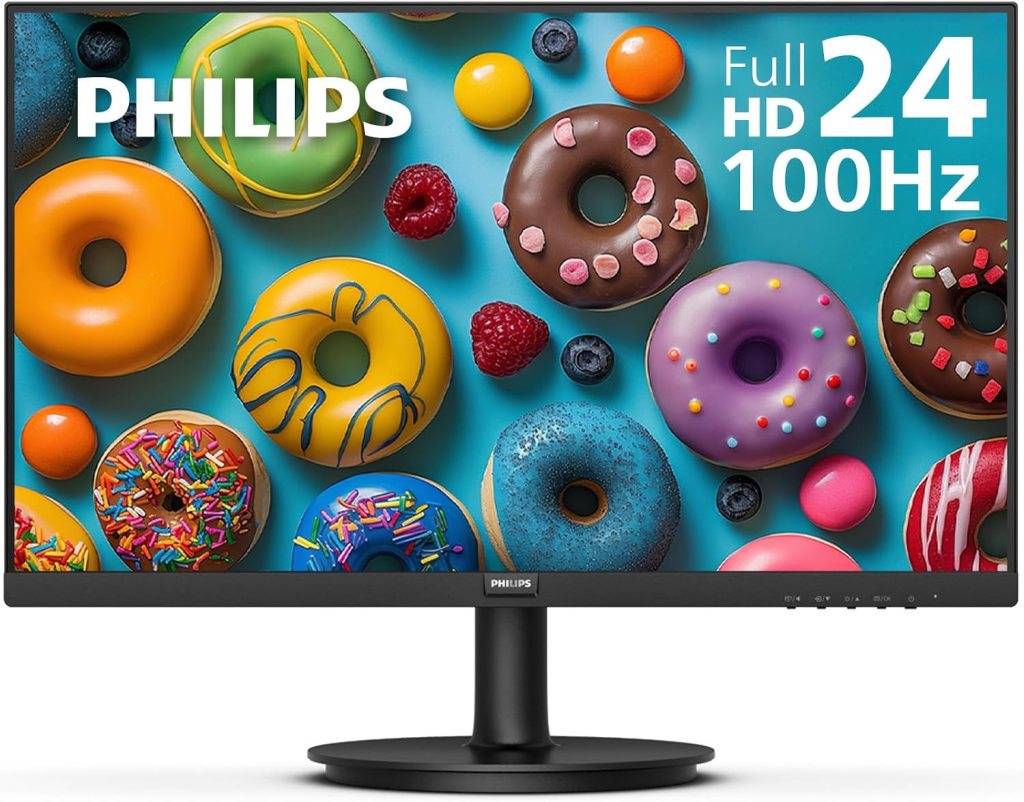
A monitor gives you a larger display than most laptop screens. For many home users, a 24-inch Full HD monitor is a practical starting point. A 27-inch screen offers more space, while higher resolutions can make text and images sharper.
Pay attention to the connections. HDMI and DisplayPort are common, while USB-C can support video and charging on compatible equipment.
Also check whether the stand adjusts for height. A screen that can be positioned comfortably may be more valuable than an expensive display with features you will rarely use.
5. USB Hubs: Check Before You Buy
A USB hub adds ports for accessories such as flash drives, keyboards, and mice. A docking station may provide additional connections for monitors, networking, and power.
However, not every USB-C port supports video or charging. Read your computer’s specifications before purchasing a hub or dock. You may need a separate adapter or power supply.
6. Don’t Forget These Useful Extras
- Webcam: Helpful if your built-in camera produces poor video.
- Headset: Useful for clearer conversations and private listening.
- Laptop stand: Raises the screen and can be paired with an external keyboard and mouse.
- External SSD: Provides portable storage and can help with backups.
- Surge protector: Helps protect equipment from certain electrical surges.
- Mouse pad: Provides a consistent surface for mouse movement.
Choose accessories based on your routine rather than buying everything at once.
7. Five Shopping Mistakes to Avoid
- Buying a monitor without checking whether your computer supports its connection.
- Assuming every USB-C hub supports video output or laptop charging.
- Paying extra for gaming features you won’t use.
- Ignoring return policies and warranty coverage.
- Buying accessories based on appearance instead of comfort and compatibility.
Final Thoughts
The best computer accessories are the ones that make your daily tasks easier. Start with one upgrade that solves a real problem, check compatibility, compare prices, and expand your setup when you need to.
TrustedTechBuys.com helps everyday buyers understand technology and shop with confidence. You don’t need to be a computer expert to make a smart purchase.
Frequently Asked Questions
1. What accessories should I buy first?
A comfortable keyboard and mouse are useful starting points. Laptop users may also benefit from an external monitor.
2. Are wireless accessories better?
They reduce cable clutter, but wired accessories can be simpler and don’t require batteries.
3. Is a 24-inch monitor good for home use?
Yes. It is a practical size for browsing, email, documents, and many office tasks.
4. Do I need a docking station?
Only if you need additional ports or want to connect several devices through one connection.
5. How can I avoid buying incompatible accessories?
Check your computer’s ports, operating system, supported features, and the manufacturer’s compatibility information before ordering.


We Welcome Your Reply