By Trusted Tech Buys
Buying a computer shouldn’t be confusing, intimidating, or more expensive than necessary. Whether you’re shopping for your first laptop, replacing an older computer, helping a family member get online, or looking for a reliable machine for everyday use, the right choice starts with understanding what you actually need.
At Trusted Tech Buys, our goal is to make technology easier to understand so you can shop confidently, avoid expensive mistakes, and get the best value for your money.
Before You Buy: What Will You Use Your Computer For?
The first question isn’t which brand is best. It’s what you want your computer to do.
- Everyday use: Browsing the internet, checking email, shopping online, watching videos, and managing photos.
- Work and business: Writing documents, handling spreadsheets, attending video meetings, and managing files.
- School and learning: Online classes, research, homework, and educational applications.
- AI and creative projects: Using AI assistants, editing photographs, creating graphics, and producing content.
- Gaming: Playing modern games, which may require more powerful processors and dedicated graphics.
You don’t need an expensive computer for basic tasks. However, buying the absolute cheapest model can become frustrating if it runs slowly or doesn’t have enough storage. Choose a computer that meets your needs today while leaving some room for tomorrow.
Laptop or Desktop: Which Is Better?
Laptop computers are portable, include a screen and keyboard, and generally have built-in cameras, microphones, and speakers. They’re ideal if you want to work from different rooms, travel, or avoid purchasing separate accessories.
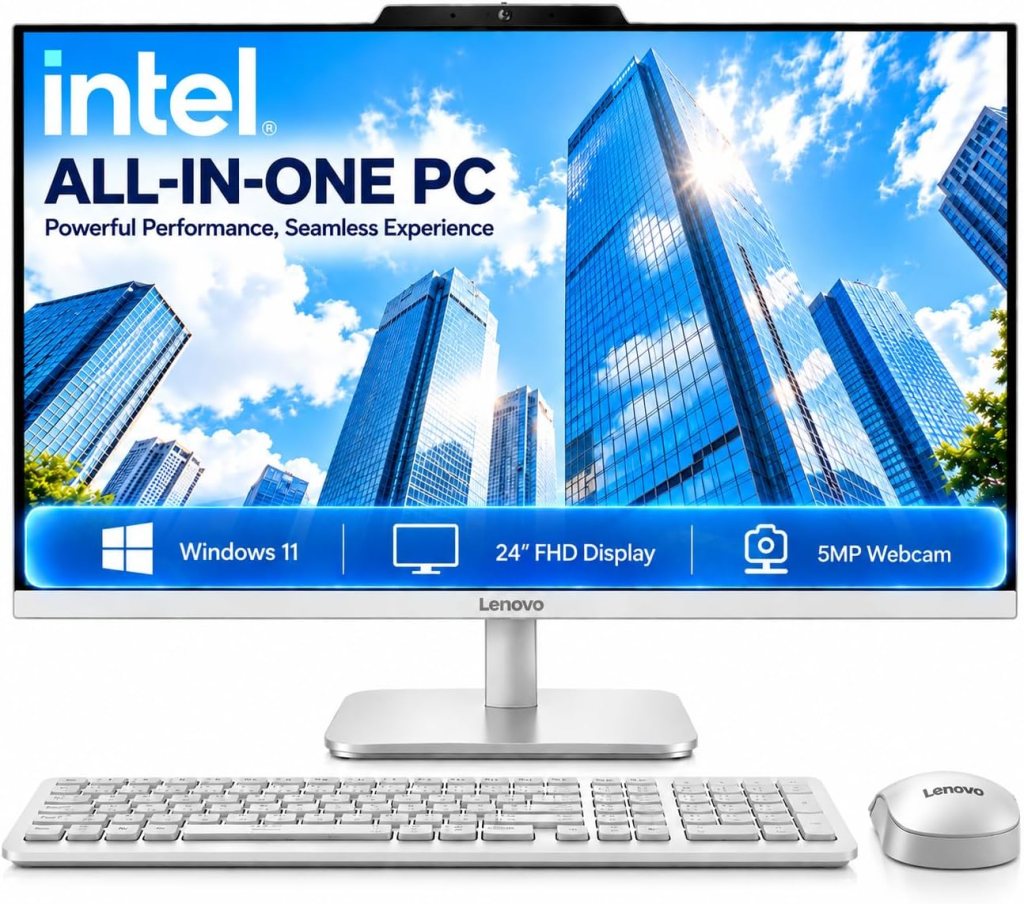
Desktop computers usually stay in one location. A desktop tower can offer good performance for the money, and you can choose your own monitor, keyboard, and mouse. Desktops may also be easier to upgrade, depending on the model.
Our beginner’s advice: Choose a laptop for convenience and portability. Consider a desktop if you mainly work at home and prefer a larger monitor.
Windows, Chromebook, or MacBook?
The operating system is the software that controls your computer and allows you to run applications.
Windows laptops
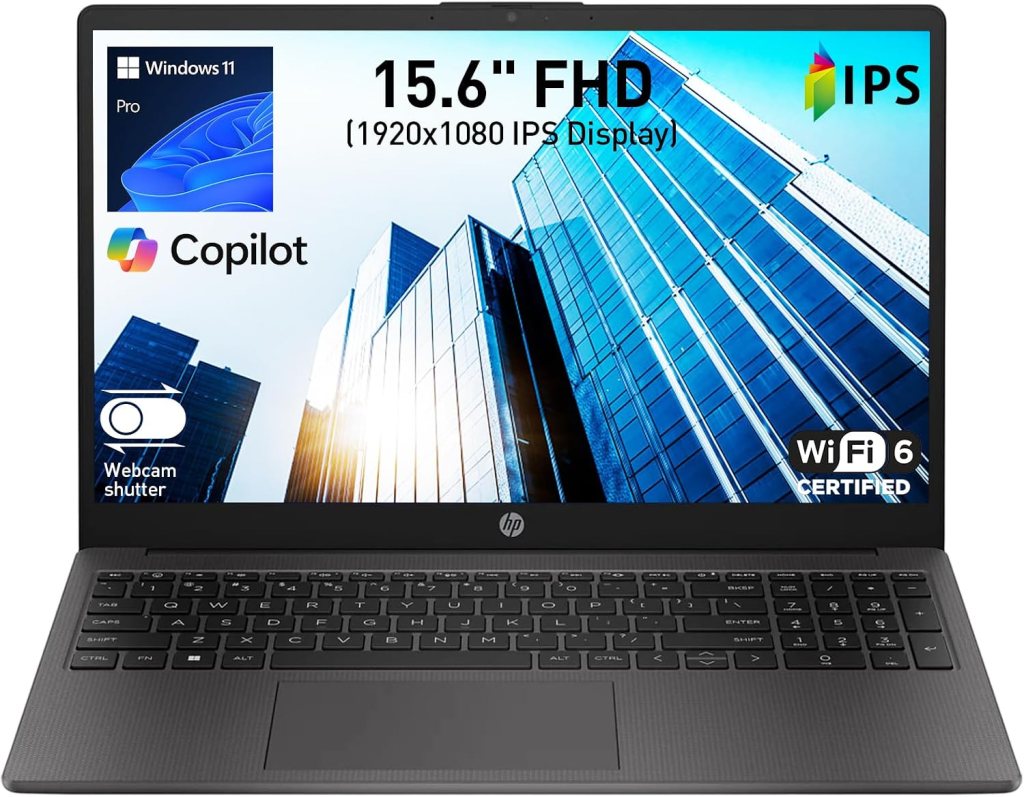
Windows computers offer broad compatibility with business software, printers, accessories, and many desktop applications. They are available across a wide range of prices.
Windows is a strong choice if you need traditional desktop programs, want plenty of model options, or prefer a familiar general-purpose computer.
Important: Windows 10 support ended on October 14, 2025. When purchasing a used or discounted computer, verify that it supports Windows 11 and meets Microsoft’s requirements. Check Windows 11 requirements.
Chromebooks
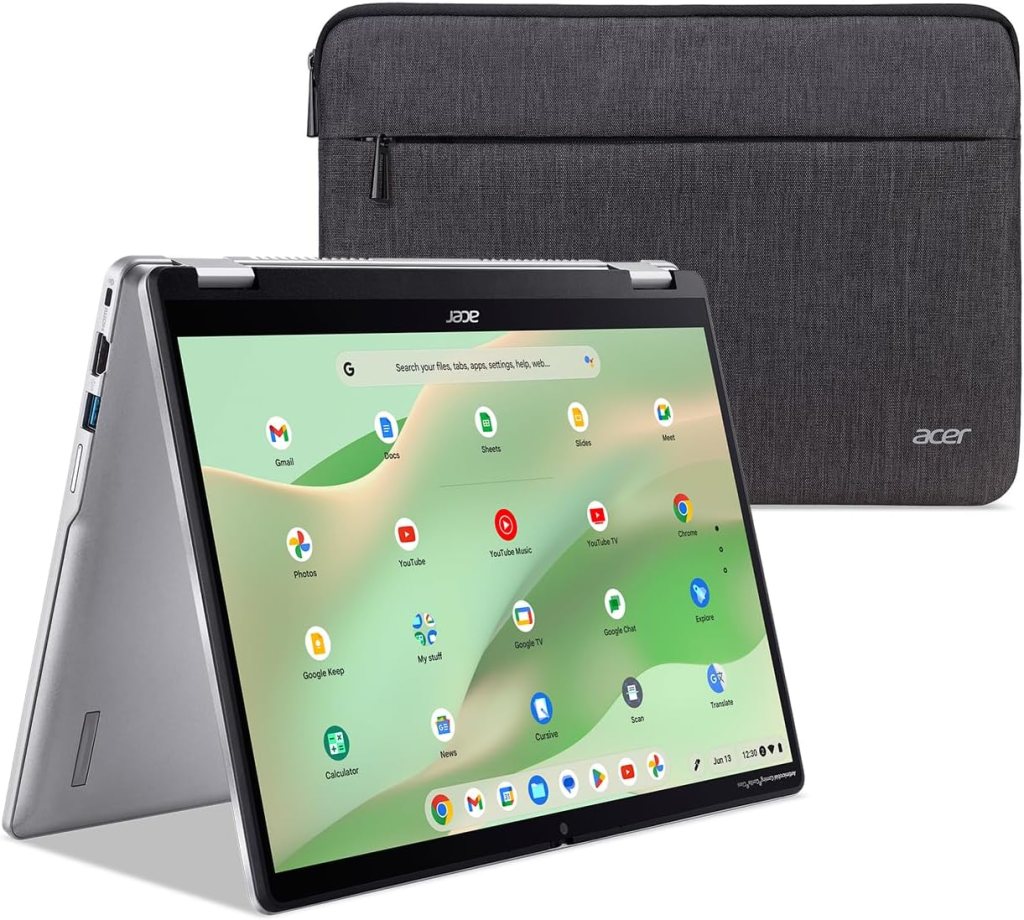
Chromebooks run Google’s ChromeOS. They are designed around web browsing and cloud-based services, including Gmail, Google Docs, Google Drive, and other online tools.
A Chromebook may be an affordable choice for someone who primarily uses the internet, writes documents, streams videos, and works with online applications.
However, Chromebooks are not identical to Windows computers. Some traditional Windows programs won’t run on them, and some tasks require an internet connection.
MacBooks
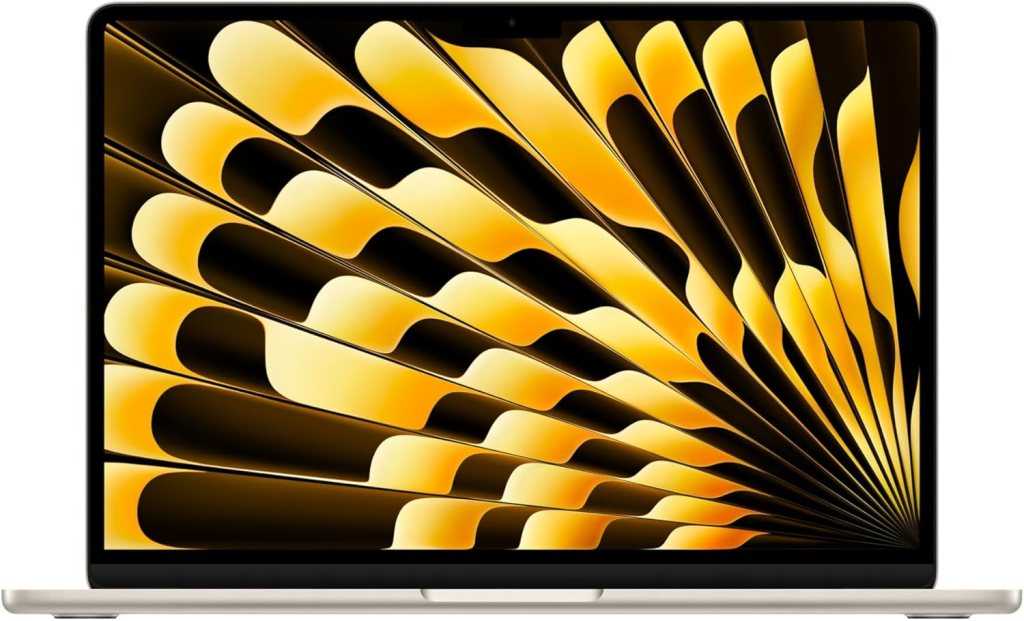
Apple’s MacBook laptops run macOS and are known for their integration with other Apple devices. They can be excellent for everyday computing, work, creative projects, and people already using an iPhone or iPad.
MacBooks can cost more than some entry-level Windows laptops. Compare the total price with your actual needs before deciding.
Computer Specifications Explained in Plain English
Computer advertisements often feature technical terms that make buying decisions confusing. Here are the specifications worth understanding.
1. RAM: How much memory does your computer need?
RAM helps your computer manage applications and tasks that are running at the same time.
- 8GB: A reasonable starting point for basic everyday use.
- 16GB: A better target for multitasking, heavier browser use, and longer-term flexibility.
- 32GB or more: Worth considering for demanding professional applications, advanced creative work, or specialized workloads.
For most beginners buying a Windows laptop, aim for 16GB if your budget allows. If you choose 8GB, understand that demanding multitasking may be more limited.
2. Storage: Where your files live
Storage holds your documents, applications, photographs, downloads, and other files.
- 128GB: Limited space; best considered for light use when most files stay online.
- 256GB: A practical starting point for many everyday users.
- 512GB: More comfortable if you keep lots of files, photographs, and applications locally.
- 1TB or more: Useful for large media libraries, extensive files, and demanding projects.
Look for an SSD, or solid-state drive. SSDs generally make computers feel much faster than older mechanical hard drives.
3. Processor: The computer’s main working engine
The processor affects how quickly your computer handles tasks. Entry-level processors can handle ordinary browsing and documents, while stronger processors are useful for heavier multitasking and creative applications.
Don’t judge a computer by the processor name alone. Compare the exact processor model, RAM, storage, and reviews of the specific configuration.
4. Screen size and quality
A 14-inch laptop is often a good balance between portability and workspace. A 15- or 16-inch model offers a larger display, which can be more comfortable for reading and working.
For most buyers, a Full HD screen (1920 × 1080) is a good target. Check brightness and readability, too.
5. Battery life, keyboard, and ports
If you travel or move around frequently, battery life matters. Manufacturer estimates can differ from real-world results, so read independent reviews.
If possible, test the keyboard and touchpad before buying. Also check for USB ports, USB-C, HDMI, and a headphone connection if you need them.
How Much Should You Spend?
Your budget should reflect the work you expect the computer to perform. These are broad shopping ranges, not guarantees of current prices or performance.
- Under $300: Look for basic Chromebooks, sale-priced entry-level laptops, or carefully checked refurbished computers. Expect compromises.
- $300–$500: Often a useful range for everyday Windows laptops and Chromebooks, especially during sales.
- $500–$800: More options for better performance, larger storage, improved screens, and longer-term usability.
- Above $800: Consider this range when you need premium build quality, specialized performance, or particular professional features.
Prices and specifications change frequently. Compare the exact model and configuration rather than relying on the brand name or advertised discount.
Should You Buy a Refurbished Computer?
A refurbished computer may save money, particularly if you need a basic machine for browsing, email, and documents. However, refurbished products vary in condition and quality.
Before buying, check:
- Whether Windows 11 is officially supported, if applicable.
- The amount of RAM and SSD storage.
- Battery condition for laptops.
- Whether the seller provides a warranty and return policy.
- Whether the computer has been reset and can receive security updates.
- Whether the charger and other essential accessories are included.
Avoid buying a computer simply because it is advertised as a bargain. An older model that cannot receive appropriate security updates may not be a wise investment.
Essential Accessories for Your New Computer
You don’t need to buy every accessory available. Start with the items that solve a real problem.
- Wireless mouse: Helpful for comfortable navigation.
- Laptop sleeve or case: Protects a portable computer.
- External backup drive: Provides another place to store important files.
- Headset or webcam: Useful for meetings and online classes when built-in equipment isn’t sufficient.
- Surge protector: Helps protect connected equipment from certain electrical surges.
You may already own accessories that work with your new computer. Check compatibility before spending more.
Frequently Asked Questions
1. What is the best affordable computer for a beginner?
The best choice depends on your needs. A Chromebook may work well for online tasks, while a Windows laptop offers broader desktop-software compatibility.
2. How much RAM should I look for?
For a new Windows laptop, 16GB is a good target if affordable. Eight gigabytes may be sufficient for lighter tasks, but it provides less room for multitasking.
3. Is a desktop better than a laptop?
Neither is automatically better. Laptops offer portability and convenience; desktops can provide a comfortable home setup and, in some cases, easier upgrades.
4. Should I buy a refurbished laptop?
It can be a good way to save money if the device is compatible with current software, in good condition, and sold with a clear warranty and return policy.
5. How long should a computer last?
A computer’s useful life depends on its quality, workload, maintenance, battery condition, and software support. Check update eligibility before buying and maintain regular backups.
Final Thoughts: Buy What You Need, Not What You Don’t
You don’t have to be a technology expert to make a smart computer purchase. Start with your budget, identify the programs you need, compare specifications, and check the warranty and return policy.
At Trusted Tech Buys, we’re here to help you understand your options in plain English. Our goal is simple: help you spend wisely, feel confident about technology, and choose devices that make everyday life easier.


We Welcome Your Reply